Click the red areas to view more information Click outside the popups to close them
Home
Back
Video Tutorials
User Profiles
Software Version
Connection Status
Home Button
Test Menu
Options Menu
Help Button
User Profile
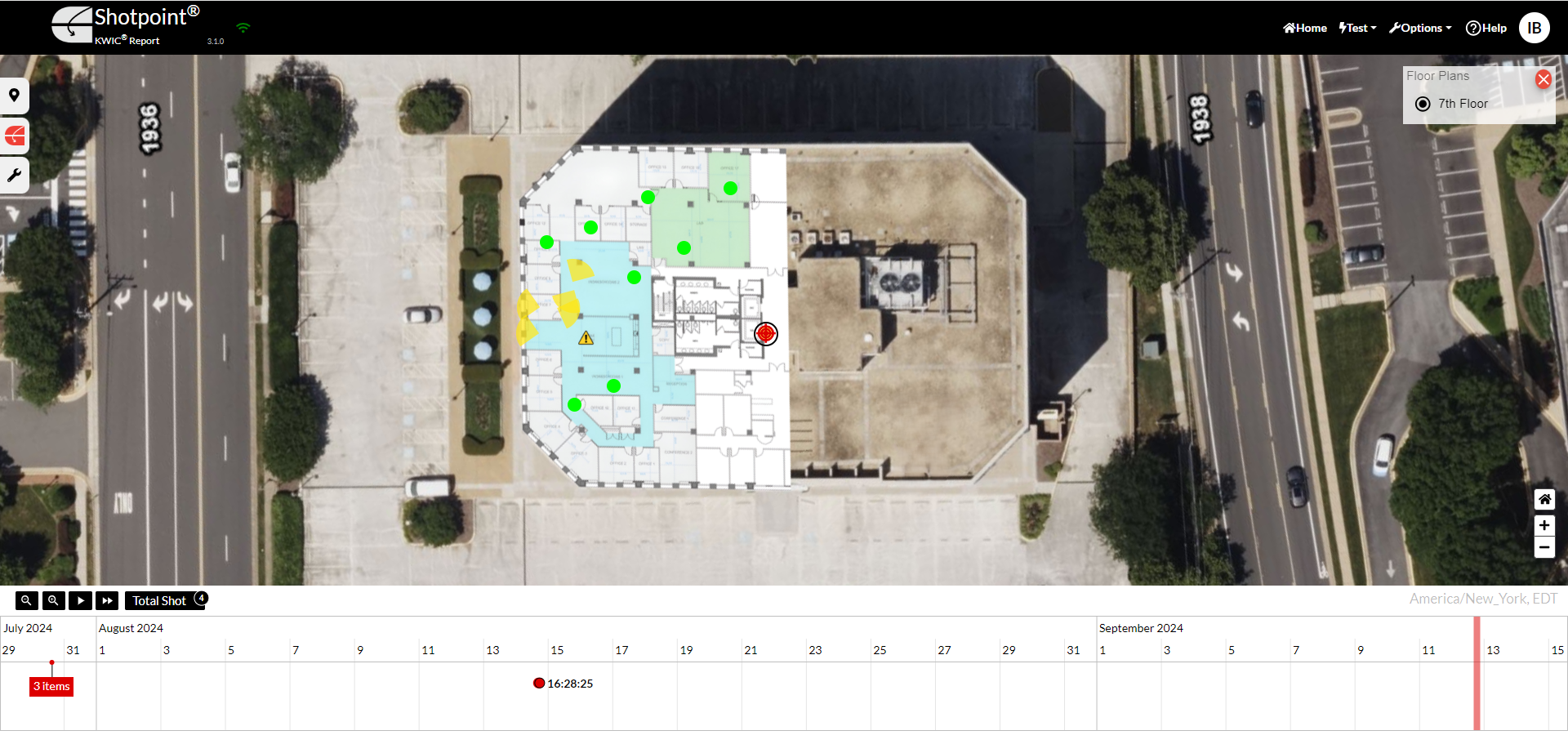
Map
Floor Selector
Floor Plan
Map Home
Map Zoom Controls
Deployments Tab
Reports Tab
Tools Tab
Timeline Zoom Controls
Play/Pause Button
Latest Shot
Timeline Totals
Timezone
Timeline
Shot Dot
Shot Cluster
Current Time Marker
Camera
Shows the current software version. If an update to the software is required, the following message will pop up on the screen, “A software/configuration update is available” and an “Apply” button that will update the software and reload the browser.
Green means connected. Spinning yellow means searching for a connection. Red means the application is not connected. WARNING: If the application is not connected no shot alerts will be reported.
Resets the app to the default home page.
Authorized users may configure the system for testing. Select below to learn more.

Create and edit users and subscribers. Select an option below to learn more.

Clicking here opens this KWIC Interactive Guide.
Hover to reveal the user login ID. Click to change password or log out.
Indicates the floor that is currently open on the map.
Embedded and georeferenced floor plan.
Resets the map to its default position.
Zoom in and out on the map.
View current deployments. Select below to learn more.

Opens the "Shot Drawer". Select below to learn more.

Configure the map by toggling options on and off. Select below to learn more.

Zoom in and out on the timeline to adjust the time period displayed.
Press to view the map in real-time WARNING: The timeline must be in “play” mode for the map to update with new shots. Browsing the timeline or pressing pause causes the system to stop updating the map when a new report comes in. The system will still display an alert banner and make an alert sound when a new shot comes in, but the shot displayed on the map is one selected by the timeline.
Displays the most recent shot on the map and timeline.
Total number of event types currently shown on the map and timeline.
Timezone of the user.
Adjust the historical shot data displayed on the map.
Clicking a shot dot causes the map to bring that shot location into view and causes the Shot List to select the corresponding Shot Report.
More than one shot may be grouped into a cluster when the timeline is zoomed out. Double click to display individual shots.